Obtaining the HSP PrusaSlicer Profiles
Where to Find and How to Install the PrusaSlicer Profiles for HSP1-I
Setting up the HSP1-I in PrusaSlicer

The latest version of PrusaSlicer ships with profiles for HSP1-I built in. To get these profiles, first start by downloading and installing PrusaSlicer from Prusa's website. Once installed, open the "Configuration Wizard" under the "Configuration" menu option.

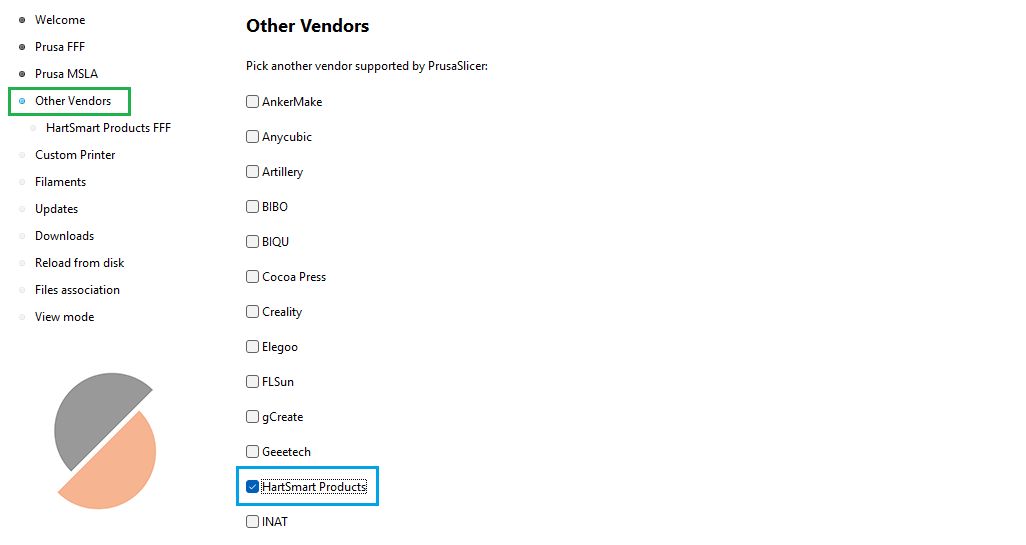
Optionally select or deselect any Prusa machines you do or do not have under the "Prusa FFF" or "Prusa MSLA" tabs (by default the Prusa Mk4 will be selected), then move to the "Other Vendors" tab. Check the "HartSmart Products" box. Doing so will create a new sub-tab under "Other Vendors".

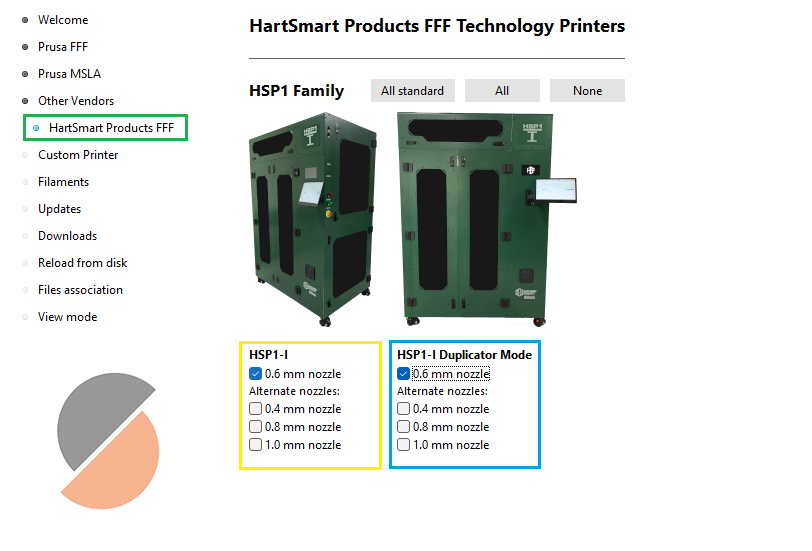
Select the "HartSmart Products FFF" sub-tab, and check any relevant nozzle sizes for the printer you have. HSP1-I ships with 0.6mm nozzles by default. "HSP1-I Duplicator Mode" contains the profiles for duplicator and mirror mode, while "HSP1-I" contains profiles for single and dual material printing.

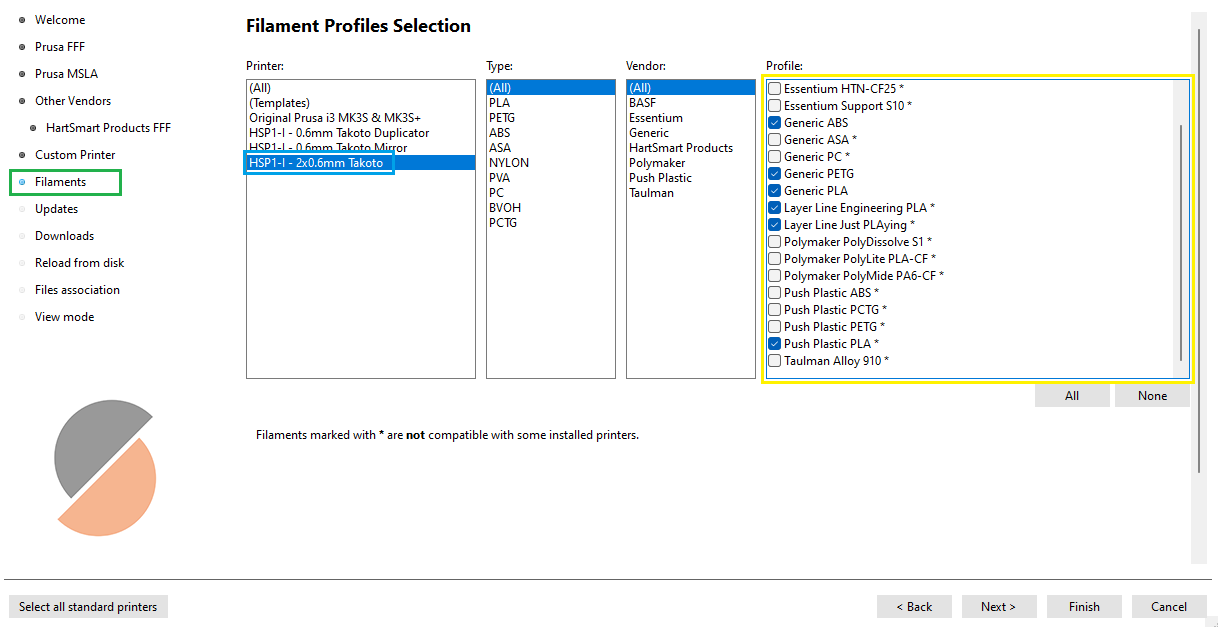
Select the "Filaments" tab, the select any HSP1-I printer under the "Printer:" category. Then select any material you would like to use with HSP1-I.

Optionally configure settings in the following tabs (Leave "Update built-in Presets automatically" under "Updates" checked to ensure you receive updated slicing profiles), then select "Finish".
Physical Printer Setup in PrusaSlicer
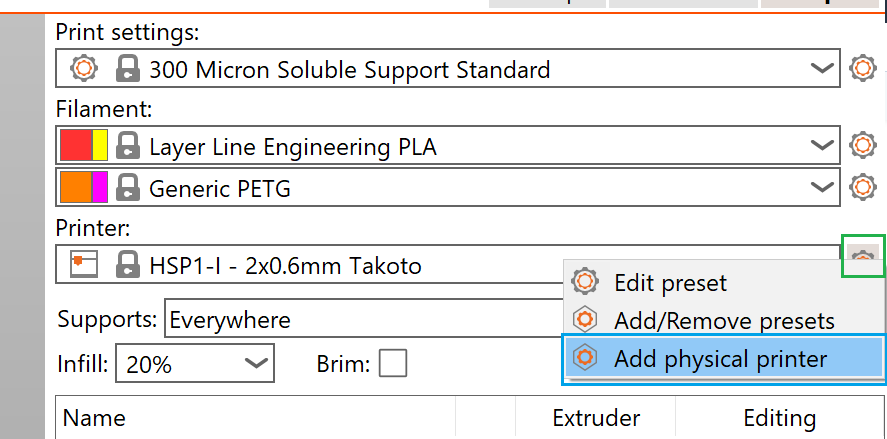
It is possible to configure PrusaSlicer to directly upload print files to HSP1-I using a "physical printer". To configure a new physical printer, select the gear icon next to the "Printer:" preset dropdown, then select "Add physical printer".

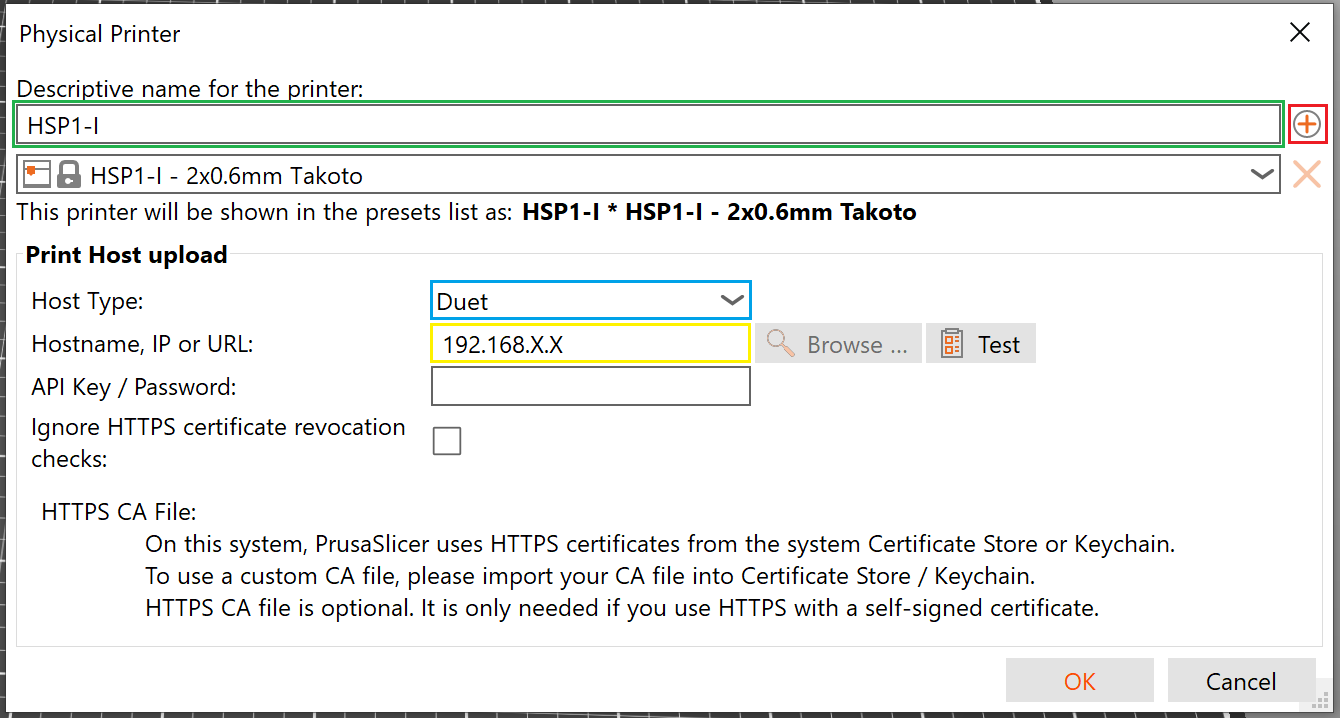
Type a descriptive name in the "Descriptive name for the printer:" field, then select "Duet" under the "Host Type:" dropdown, and type in the IP in the "Hostname, IP or URL:" field. You can optionally use the "+" icon next to the printer name field to add additional printer profiles to this physical printer, such as the profiles for alternate nozzle sizes or duplicator/mirror mode.

Last updated